
PhotoRobot Control Unit Firmware 2.0 - User Manual
About this manual
Every PhotoRobot machine is driven by a PhotoRobot control unit. Firmware 2.0 (FW 2.0) is the new firmware for the control unit, with a new web interface that opens in any current browser on a computer, a tablet or a phone.
This manual walks through the web interface screen by screen. It covers both parts of it:
- the public part, which everyone who operates the machine can use: operation, calibration, health, firmware update notices and the network check, and
- the service area, which is protected and opens only with an access code issued by a PhotoRobot service technician. You may never need it, but this manual shows what is in it, so that you know what a technician does when they help you.
Most screenshots in this manual are interactive: click the highlighted areas, or the buttons under the screenshot, and the screen reacts like the control unit does. The values in the screenshots are demo values.
Screenshots marked Design preview show the design of screens that are still being finished; the final screens may differ in detail.
What firmware 2.0 brings
- Checks before failures. The control unit checks its own health continuously and lists what needs attention, so you can act before it turns into a stop.
- Better watch on internal temperatures. The Health page shows the internal temperature of the control unit among its checks.
- Filter-cleaning recommendations. The control unit is designed to recognize a rising temperature trend, which typically means a clogging air filter, and to recommend cleaning it.
- A livelier system with many new functions. A new interface for every screen size, STOP ALL on every page, programs that run to their end on the unit itself, firmware updates you schedule yourself, and the interface in your language.
- Care for the hardware. Early notices about heat and dust help you keep the machine clean and in good shape.
Who this manual is for
Operators and studio managers who work with a PhotoRobot machine every day, IT staff who connect the control unit to the company network, and anyone who wants to know what to expect from firmware 2.0 before the upgrade.
Safety first
The control unit moves heavy parts with strong motors. Before you move anything from the web interface:
- make sure nobody has a hand, a tool or a cable in the path of the turntable, the arm or the lift,
- know where STOP ALL is: in the header of every page, top right. The Esc key and the space bar do the same,
- keep the hardware emergency stop of the machine within reach. STOP ALL in the browser does not replace it.
Conventions
| You see | Meaning |
|---|---|
| Bold names | buttons, tabs and labels exactly as the interface shows them |
| Service area | pages that need an access code from a PhotoRobot service technician |
| Interactive screenshot | click the highlighted areas or the round buttons under it; Start over resets it |
1 Access levels: public interface and service area
The web interface of the control unit has two parts.
| Public interface | Service area | |
|---|---|---|
| Who | everyone who operates the machine | a PhotoRobot service technician, or you with an access code from PhotoRobot |
| How to open | sign in to the unit | Service › Unlock with code, with a one-time code from PhotoRobot support |
| What is in it | Operate, Calibration, Health, the firmware update notice, Network check, language | diagnostics, calibration log, network settings, system information and settings, users, log for support, activation, firmware installation, restart, remote support |

1.1 Why the service area is protected
The service area holds settings that change how the machine moves and how the control unit talks to your network: calibration values, network addresses, user accounts, firmware installation. A wrong value there can stop production or put the machine in an unsafe state. That is why these pages open only with a code from PhotoRobot: nobody changes calibration or network settings by accident, and every service visit starts with a PhotoRobot technician who knows the machine.
Operation itself is never locked. You can always operate the machine, see its health, check the network and stop everything with STOP ALL.
1.2 Getting access to the service area
- Contact PhotoRobot support and describe what you need, or follow the steps a PhotoRobot technician gives you.
- Open Service and choose Unlock with code. The unit shows its serial number and a challenge.
- Read both to the technician. You get a code back.
- Enter the code and choose Unlock.
The code works once, on this unit, for this challenge only. The service area locks again automatically after a while, or when you choose Lock service. Nobody can reuse an old code.
Service area: unlock with a code from PhotoRobot
Design preview · demo data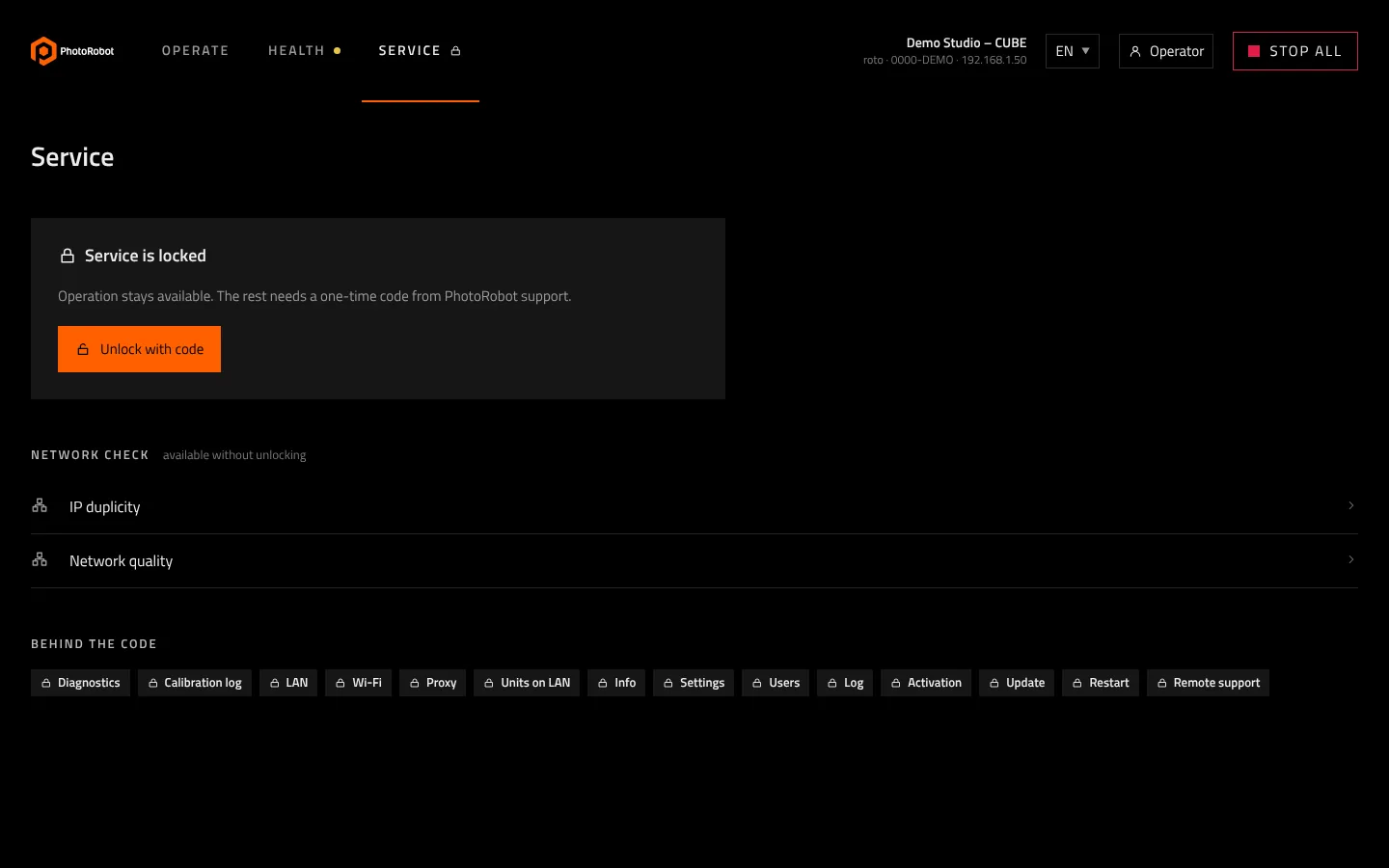
1.3 Signing in
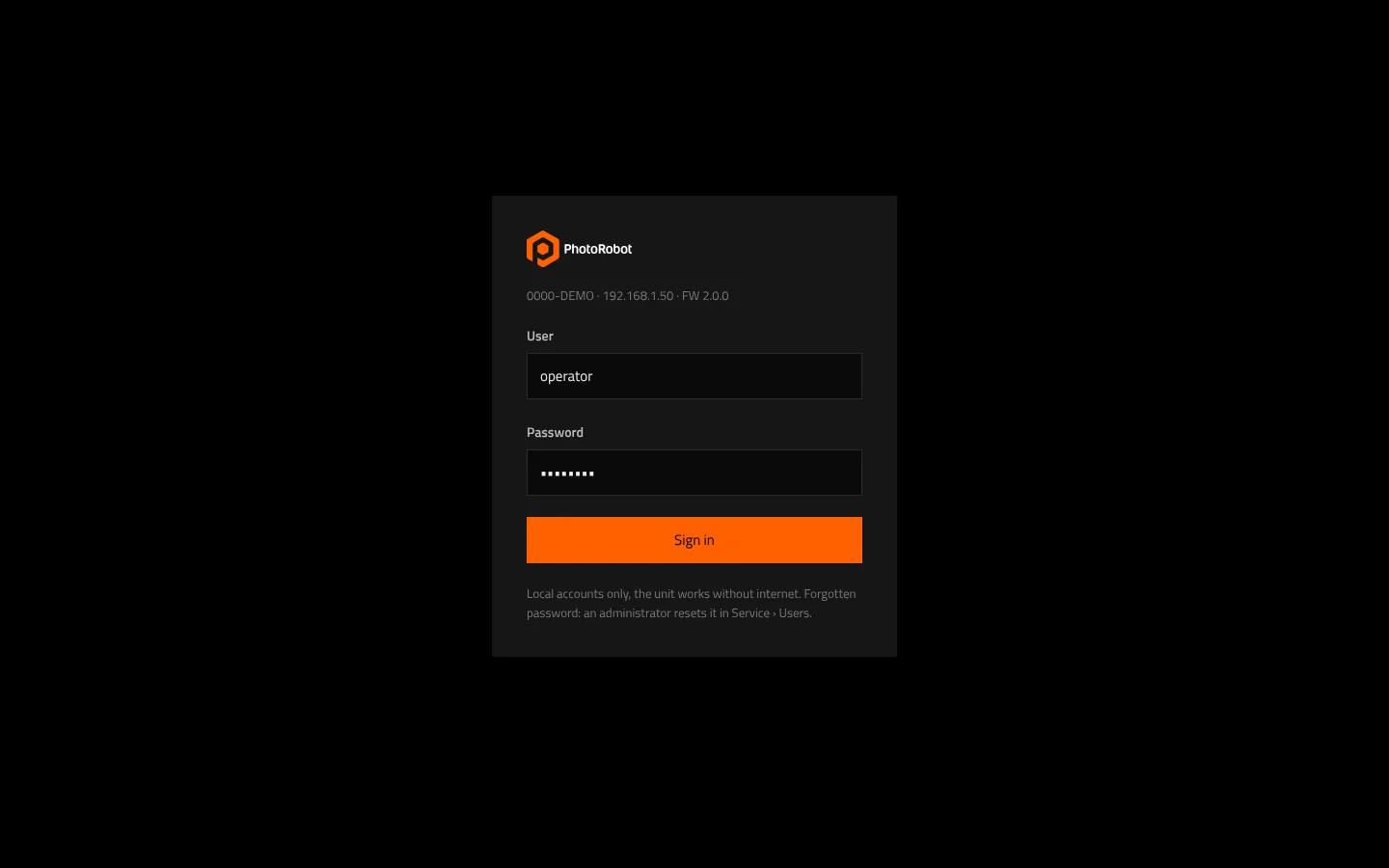
The control unit has its own local user accounts, so it works without an internet connection. You sign in with a user name and a password. A forgotten password is reset by an administrator of the unit in Service › Users.
1.4 What each role sees
| Role | Pages |
|---|---|
| Operator | Operate, Calibration (on machines that have it), Health, Network check, firmware update notices |
| Service (unlocked) | everything an operator sees, plus all pages of the Service area |
Pages a machine type does not have are not shown at all. For example, Calibration appears only on machines with a calibration routine.
2 Opening the web interface
2.1 What you need
- A computer, tablet or phone in the same network as the control unit.
- A current web browser. Nothing has to be installed.
- The address or the name of the control unit. PhotoRobot Controls shows the control units it finds in your network; your IT team can also tell you the address.
The interface adapts to the screen: it works on a large studio monitor, a laptop, a tablet in portrait or landscape and a phone.
2.2 The header
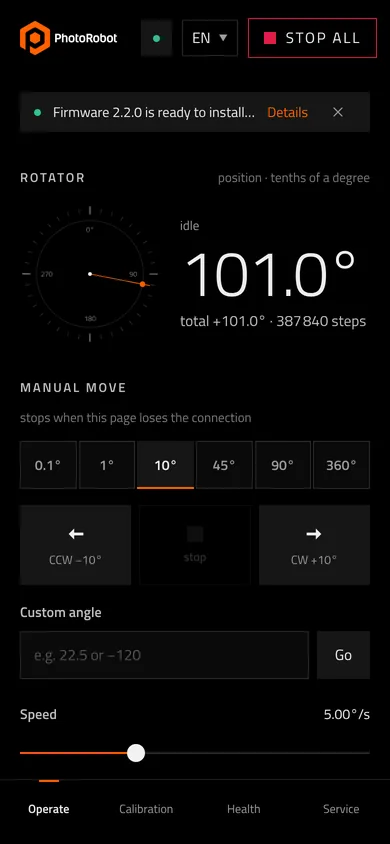
The header stays at the top of every page:
| Element | What it does |
|---|---|
| PhotoRobot logo | the unit you are connected to |
| Operate, Calibration, Health, Service | the main pages. A dot next to Health shows its state: green OK, amber needs attention, red blocks operation |
| Live | the page is receiving live data from the unit |
| unit name and address | name, network address and firmware version of the control unit |
| language | switches the language of the interface |
| STOP ALL | stops every axis of the machine immediately. Lit red while anything moves |
On a phone, the main pages move to tabs at the bottom of the screen.
Keyboard shortcuts: Esc or the space bar = STOP ALL, 1 to 4 = the main pages, ? = list of shortcuts.
2.3 Language
The interface follows the language of your browser the first time you open it. Choose another language in the header; the choice is remembered in that browser. Changing the language never interrupts a move. Languages written from right to left are mirrored, while physical things such as the turntable dial and the direction buttons keep their real orientation.
Messages meant for PhotoRobot support, such as a copied network check result, stay in English with the time in UTC, so that support can read them whatever language you work in.
2.4 HTTPS or HTTP
Your browser connects to the control unit in one of two ways:
- HTTPS: the browser shows a padlock, and the connection to the unit is encrypted. Your network must be able to reach the unit by its name.
- HTTP: no padlock. Use it in networks that cannot reach the unit's name. Activation and firmware updates keep working.
Which one your unit uses depends on your network. If you are not sure, ask your IT team or PhotoRobot support.
3 Operate
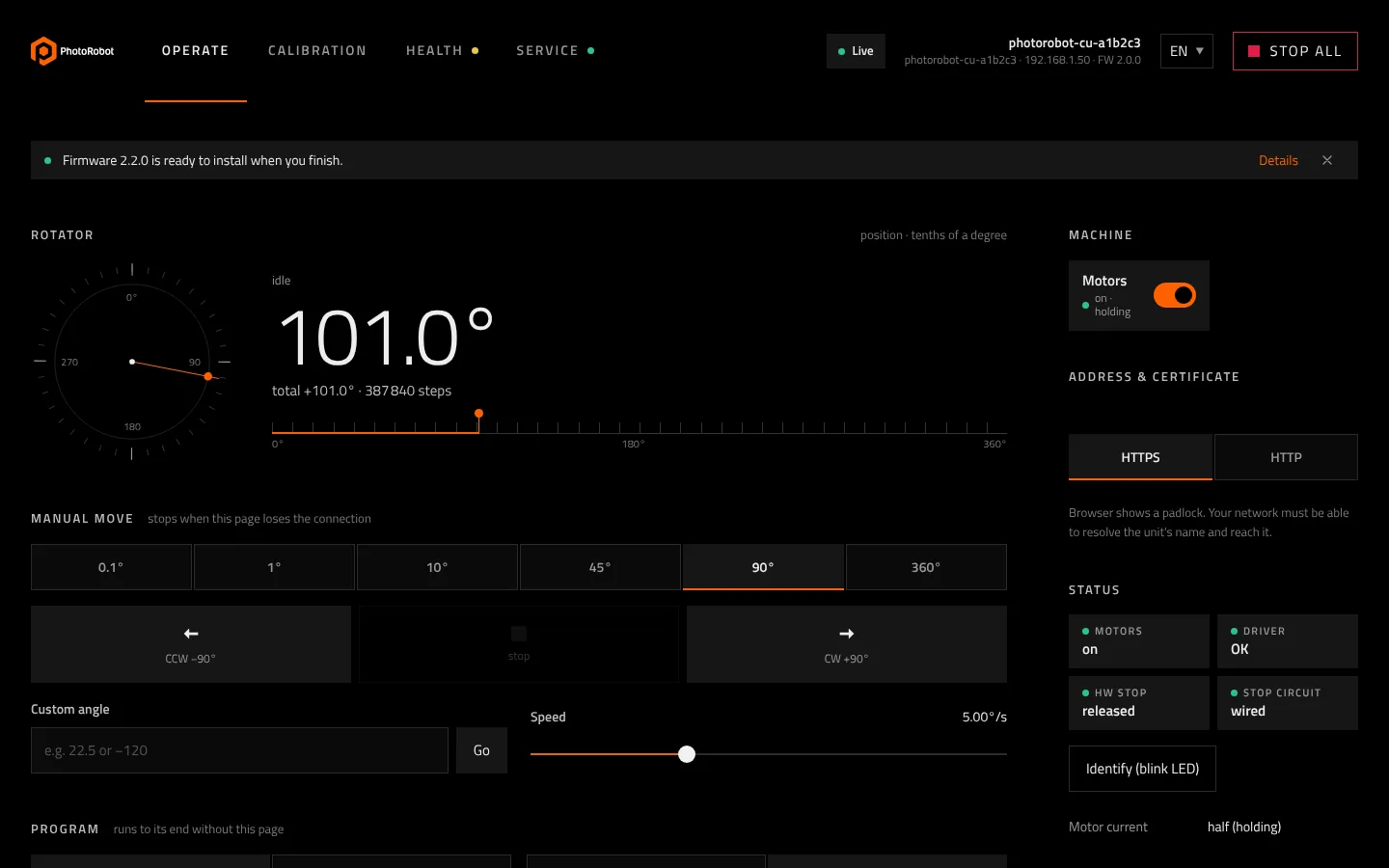
Operate is where you move the machine. The example below is a turntable; machines with more axes add their own controls in the same layout.
Operate: turn the table and stop it
FW 2.0 interface · demo values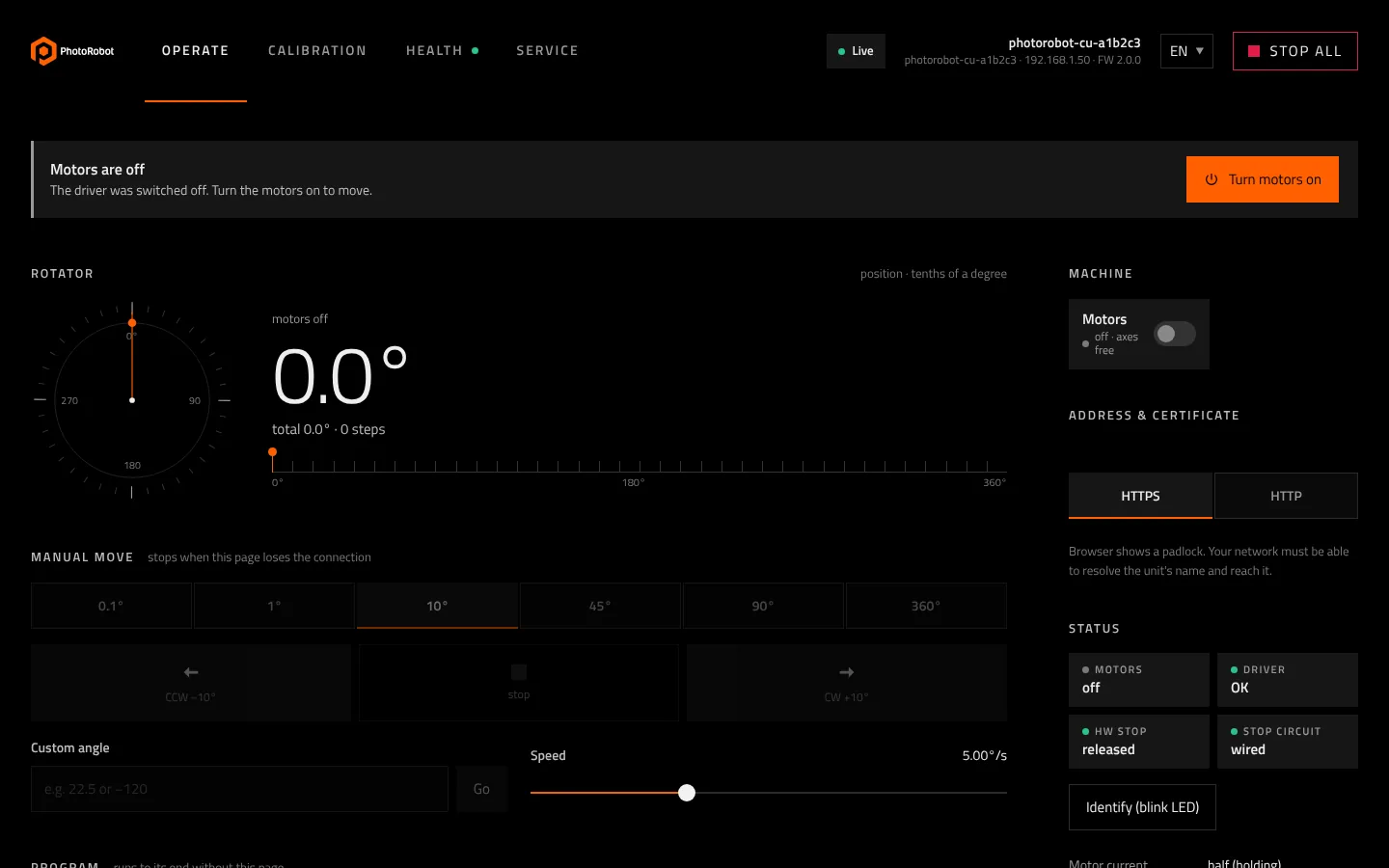
3.1 Motors
After the control unit starts, the motors are off and the turntable turns freely by hand. A banner says so, with the button Turn motors on. The Motors switch in the Machine panel does the same:
- on: the motors hold the machine in place and you can move it from this page,
- off: the axes are free, for example to load a heavy product by hand.
3.2 Position
The Rotator section shows where the turntable is: a dial, a large readout in tenths of a degree and a scale along one full turn. Below the readout you see the total distance turned since the last zero.
3.3 Manual move
- Pick a step size: 0.1°, 1°, 10°, 45°, 90° or 360°.
- Click the arrow button: CCW turns counterclockwise, CW clockwise, by the selected step.
- Stop ends the move early.
For any other angle, type it into Custom angle (for example 22.5 or -120) and choose Go. Speed sets how fast manual moves run.
A manual move stops on its own when the page loses the connection to the unit, so a closed laptop never leaves the machine turning.
3.4 Motion bar and STOP ALL
While anything moves, a motion bar appears under the header on every page: what is moving, how far and how long, with its own Stop button. STOP ALL in the header is lit red. One click on STOP ALL, or the Esc key, stops every axis at once. No dialog ever covers the header, so STOP ALL is always reachable.
3.5 Programs
A program runs a series of moves on the control unit itself, for example a number of full turns or a revolution with a pause at every stop.
- Choose Turns or Stops, the direction CCW or CW and the numbers the program asks for.
- Choose Start.
A program runs to its end even if the page is closed or the network drops; the hardware stop of the machine keeps it safe. Pause and Resume are in the motion bar.
Arm (wait for GO) prepares the program without starting it. Several machines armed this way start together on one GO, for example two robots working on the same product.
3.6 Status and events
The Status panel shows the motors, the motor driver, the hardware stop and the stop circuit at a glance. Events lists what the unit did recently, newest first, with the time in UTC. Identify (blink LED) makes the unit's light blink, so you know which unit you are connected to when there are several.
3.7 Firmware update notice
When a new firmware is available or ready to install, one line appears above the workspace with a Details link. It never appears while the machine moves or a program is loaded, and you can close it. See chapter 6.
3.8 Machines with several axes
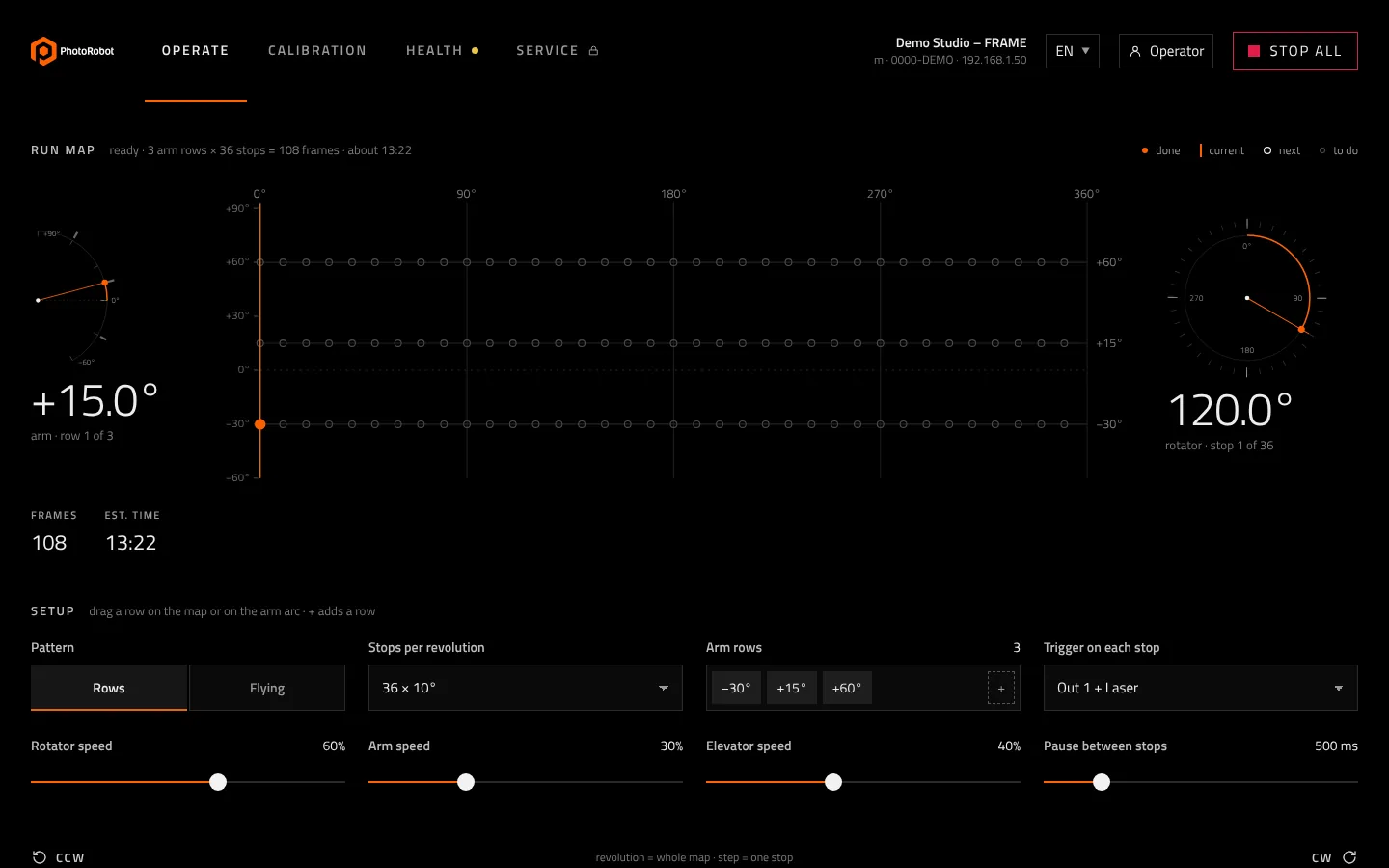
Machines such as the FRAME combine the turntable with an arm and a lift. Their Operate page adds a control for each axis and a run map: arm rows times turntable stops on one picture, so you see the whole sequence before you start it and follow it while it runs.
4 Calibration
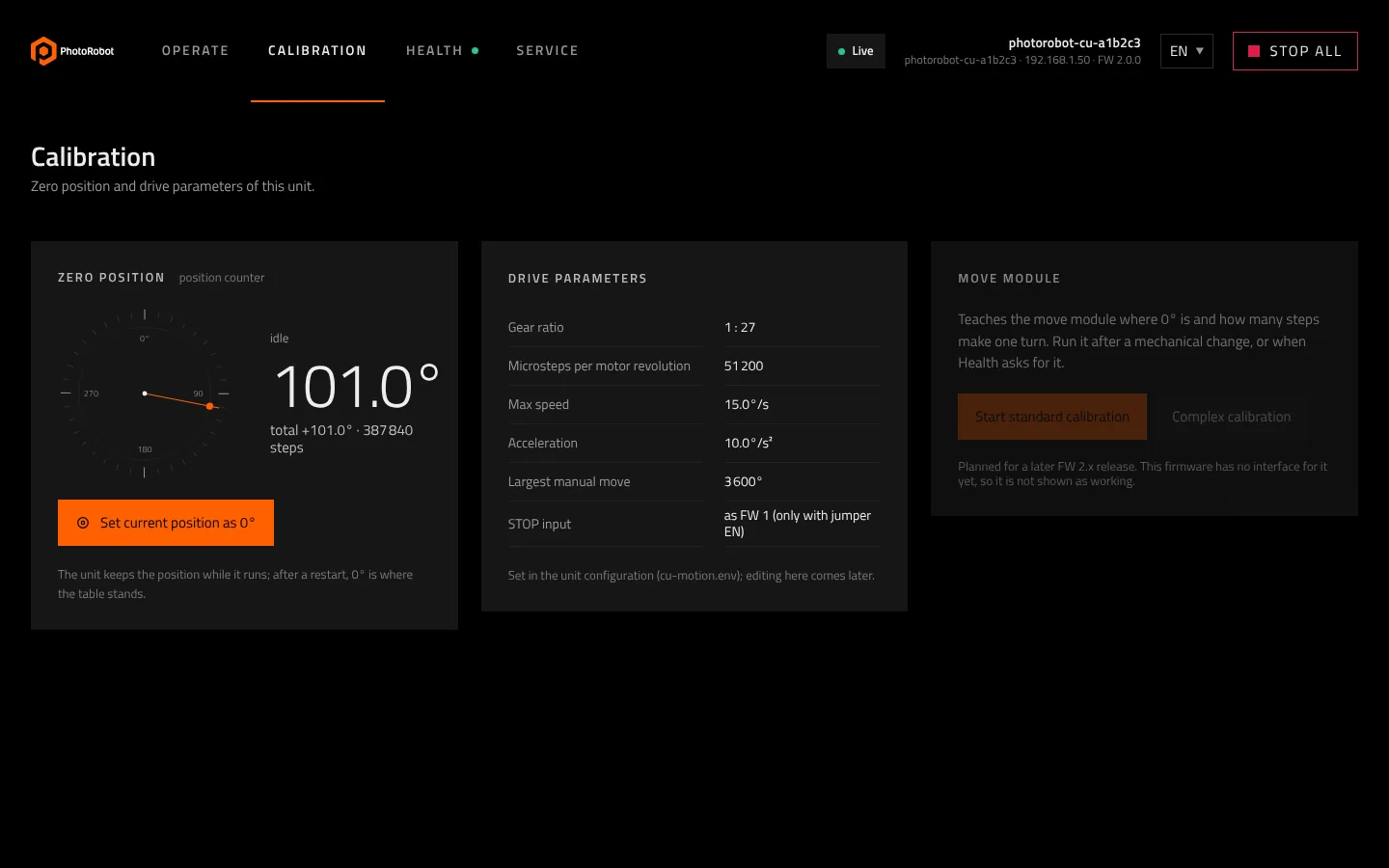
Calibration sets the zero position of the machine and shows the drive parameters. It appears only on machines that have a calibration routine.
4.1 Zero position
- Turn the table to the position that should be 0°, by hand with the motors off or with a manual move.
- Choose Set current position as 0° and confirm.
Nothing moves when you set the zero. The unit keeps the position while the table turns; after a restart or a mechanical change, set the zero again where the table stands.
4.2 Drive parameters
The drive parameters (gear ratio, speed and acceleration limits, largest manual move) are shown for information only. They are set by PhotoRobot for your machine and change only in the service area.
4.3 Calibration runs
A calibration run moves the machine on its own. While it runs, the motion bar shows only Stop: a calibration cannot be paused, only stopped and started again.
5 Health
Health tells you, in one place, whether the control unit and the machine are in good shape, and what needs your attention before it becomes a stop. You do not need a technician to read it.
Health: what needs attention
FW 2.0 interface · demo values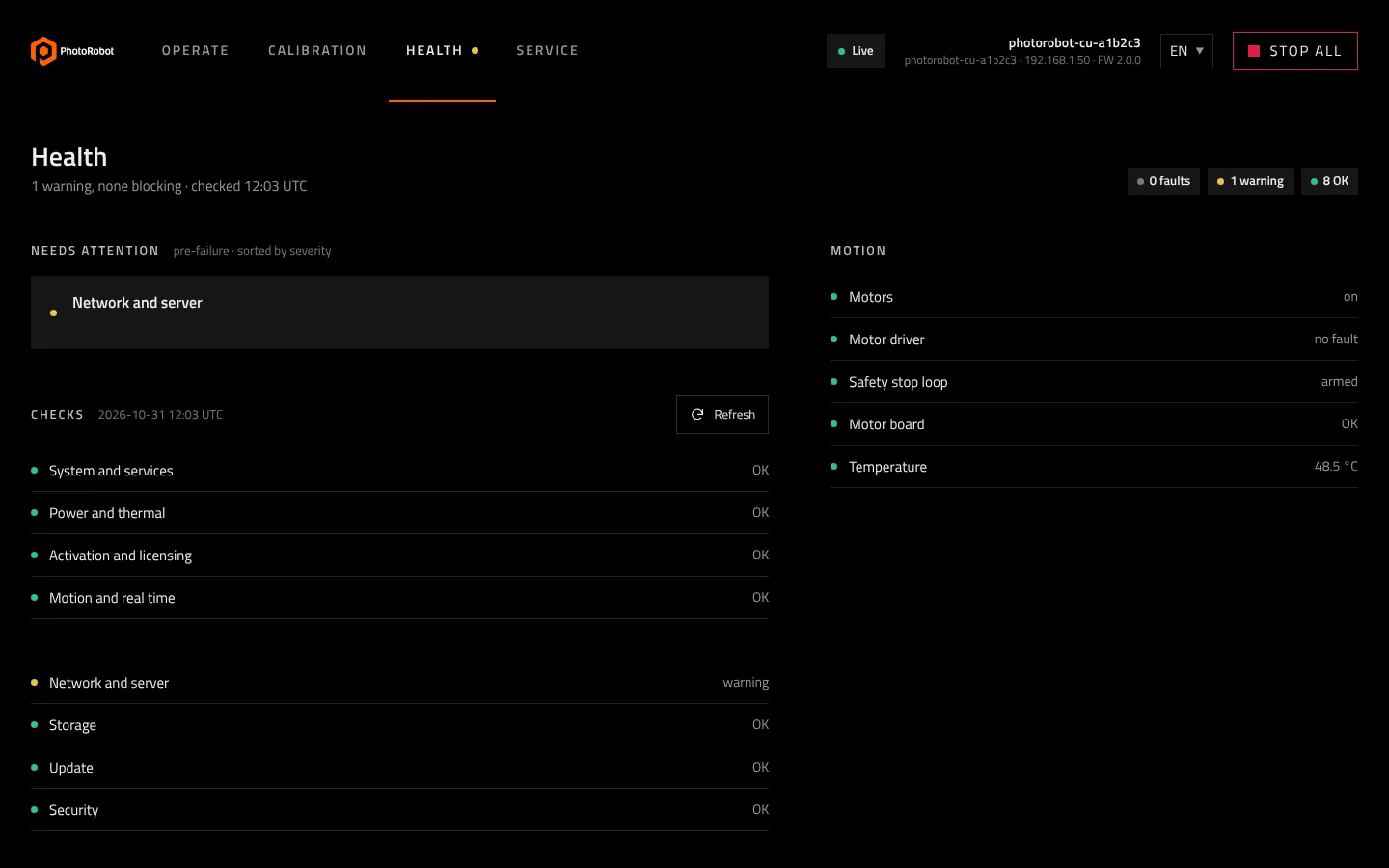
5.1 Summary
The first line sums up the unit: how many items need attention, whether any of them blocks operation, and when the unit last checked. The counters on the right show faults, warnings and checks that are OK.
5.2 Needs attention
Items that need attention come first, sorted by severity. Each one says what it is and what to do. Most of them let the machine keep working: they are early warnings, not stops.
5.3 Checks
The unit runs its checks continuously, one line per area: system and services, power and temperature, activation, motion, network, storage, updates and security. Green means OK, amber needs attention, red blocks operation. Refresh asks for a new result right away, for example after you have fixed a cable.
The Motion panel shows the motors, the motor driver, the safety stop loop, the motor board and the internal temperature.
5.4 Temperatures and air filters
The most common cause of rising temperatures in a control unit is a clogging air filter: airflow drops a little every day and the temperature creeps up. The control unit is designed to compare its temperatures with its own usual values and to recommend cleaning the filter when the trend points that way. When you have cleaned it, choose Mark filter cleaned.
Health: filter and trend recommendations
Design preview · demo data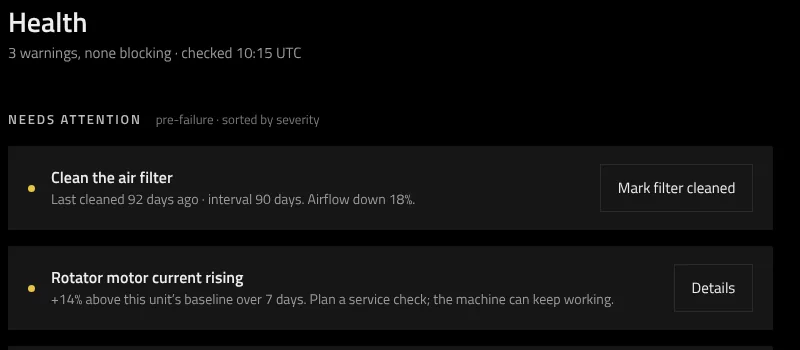
If the temperature is too high, the control unit holds the motors off until it has cooled down and says so on the screen.
6 Firmware updates
With firmware 2.0 the control unit keeps itself up to date, and you stay in charge of when anything changes.
6.1 How updates work
- The control unit checks for new firmware on its own.
- When a release is available for your unit, it downloads in the background. The machine keeps working normally.
- When the download is complete and verified, you decide when to install. Installation restarts the control unit and never starts while the machine is working.
The firmware you have installed keeps working. Nothing is switched off when a newer release comes out.
6.2 Where you see it
- Operate: a one-line notice when a release is available or ready to install (chapter 3.7). It never covers STOP ALL and never appears during a move.
- Service › Firmware: the installed version, the release channel, the time of the last check, Check now, the state of the newest release with What's new, and a card that shows which releases your support plan covers.
Firmware updates: you decide when
FW 2.0 interface · demo values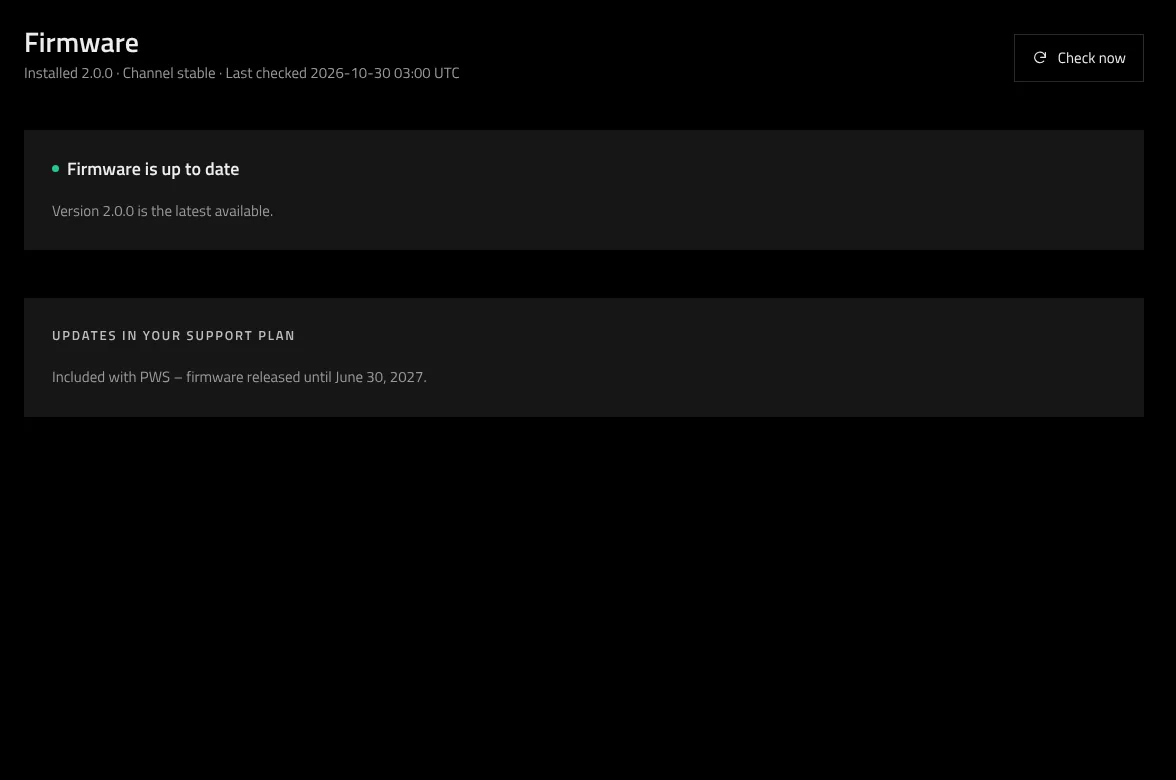
6.3 States you may see
| Message | Meaning |
|---|---|
| Firmware is up to date | the installed version is the newest one available for this unit |
| Firmware X is available | a newer release exists; it downloads in the background |
| Downloading | download in progress; the machine works normally |
| Ready to install | downloaded and verified; install it when the machine is idle |
| Your plan covers firmware up to X | newer releases exist but are not included in this unit's plan; the installed firmware keeps working |
| Can't check for updates | the unit cannot reach PhotoRobot right now; it tries again later |
| Update check is turned off | this unit is set up so that a PhotoRobot technician brings updates |
6.4 Updates and your support plan
Firmware updates are a benefit of PhotoRobot PWS. The card Updates in your support plan shows up to which release your plan covers the unit. Without PWS, the upgrade to firmware 2.0 is available as a paid upgrade (chapter 9).
7 Network check
Network check tells you whether the control unit's network connection is healthy. It is in the Service menu but open to everyone, without a service code, so that you and your IT team can use it at any time.
7.1 What it shows
- whether the network link is up and how fast it is,
- whether the unit reaches your network's gateway,
- whether the unit's clock is synchronized,
- whether the unit reaches PhotoRobot online services,
- the unit's network address.
A summary line on top says whether everything is fine or what needs a look. If you contact PhotoRobot support about a network problem, include what this page shows.
8 The service area
The service area is where a PhotoRobot service technician, or you with an access code from PhotoRobot, looks deeper into the control unit and changes its settings. Chapter 1 explains how to unlock it. This chapter describes each page, so that you know what to expect when a technician works with you.
Until the service area is unlocked, Service shows a lock, lists the pages behind the code and keeps Network check open.
The service menu has four groups: Machine, Network, System and Support.
8.1 Machine
Diagnostics shows the live state of the machine: inputs and outputs, the motor, the operating limits and the signals the technician needs to tell a hardware fault from a software problem. It also lets the technician move an axis directly in small, precise steps while looking for a fault.
Burn-in runs long test sequences on the machine and keeps their records. PhotoRobot uses it before a machine leaves production and after repairs; the result is stored with the unit.
Calibration log lists every calibration of the unit, newest first, with its result.
8.2 Network
LAN shows and changes the unit's wired network address: automatic or fixed, gateway and name servers. If an address change fails, the unit falls back to the previous address.
Wi-Fi connects the unit to a wireless network, on units that have Wi-Fi.
Proxy sets a proxy server, for companies whose network requires one for outgoing connections.
Units on LAN lists the other PhotoRobot control units in the same network, with a link to each one's interface.
Network check is described in chapter 7. It is the only page of the service menu that is open without a code.
8.3 System
Info collects everything support asks for in one place: unit name, serial number, firmware version, uptime, temperature, and the fonts and licenses the interface uses.
Settings holds the unit-wide settings: the firmware release channel, offline installation, logging and time.
Users manages the local user accounts of the unit and their roles. Service rights are never given to an account; they unlock only with a one-time code from PhotoRobot.
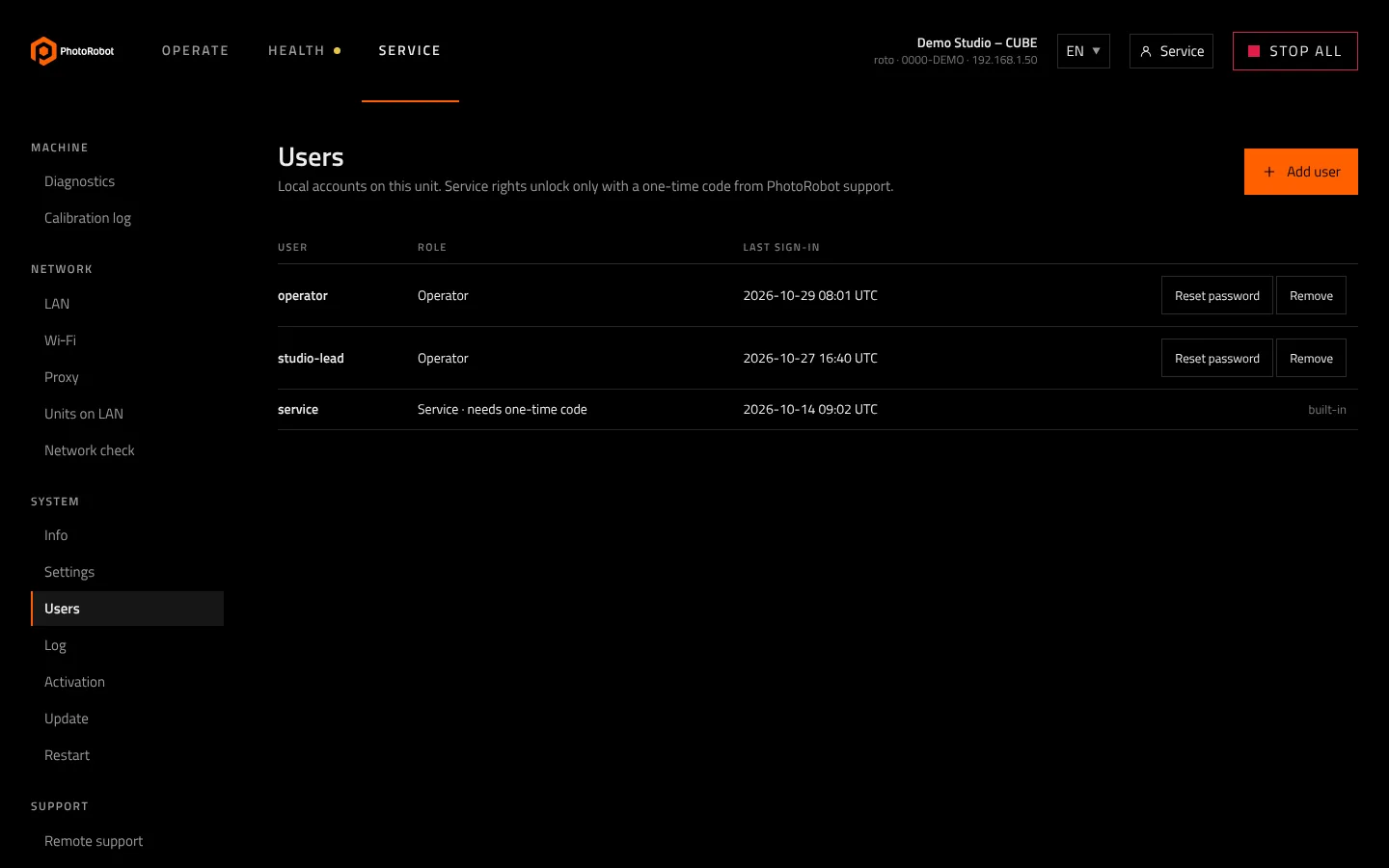
Log shows what the unit recorded, newest first, with the time in UTC. Download saves a diagnostic package that you can attach to your support ticket.
Activation shows whether the unit is activated and paired with PhotoRobot, and prints the unit's label.
Firmware is described in chapter 6.
Restart restarts the control unit. The motors switch off during the restart.
8.4 Support
Remote support is designed as a time-limited session in which a PhotoRobot technician can reach this unit. The page shows how much time is left, and you can extend the session or end it at any moment.
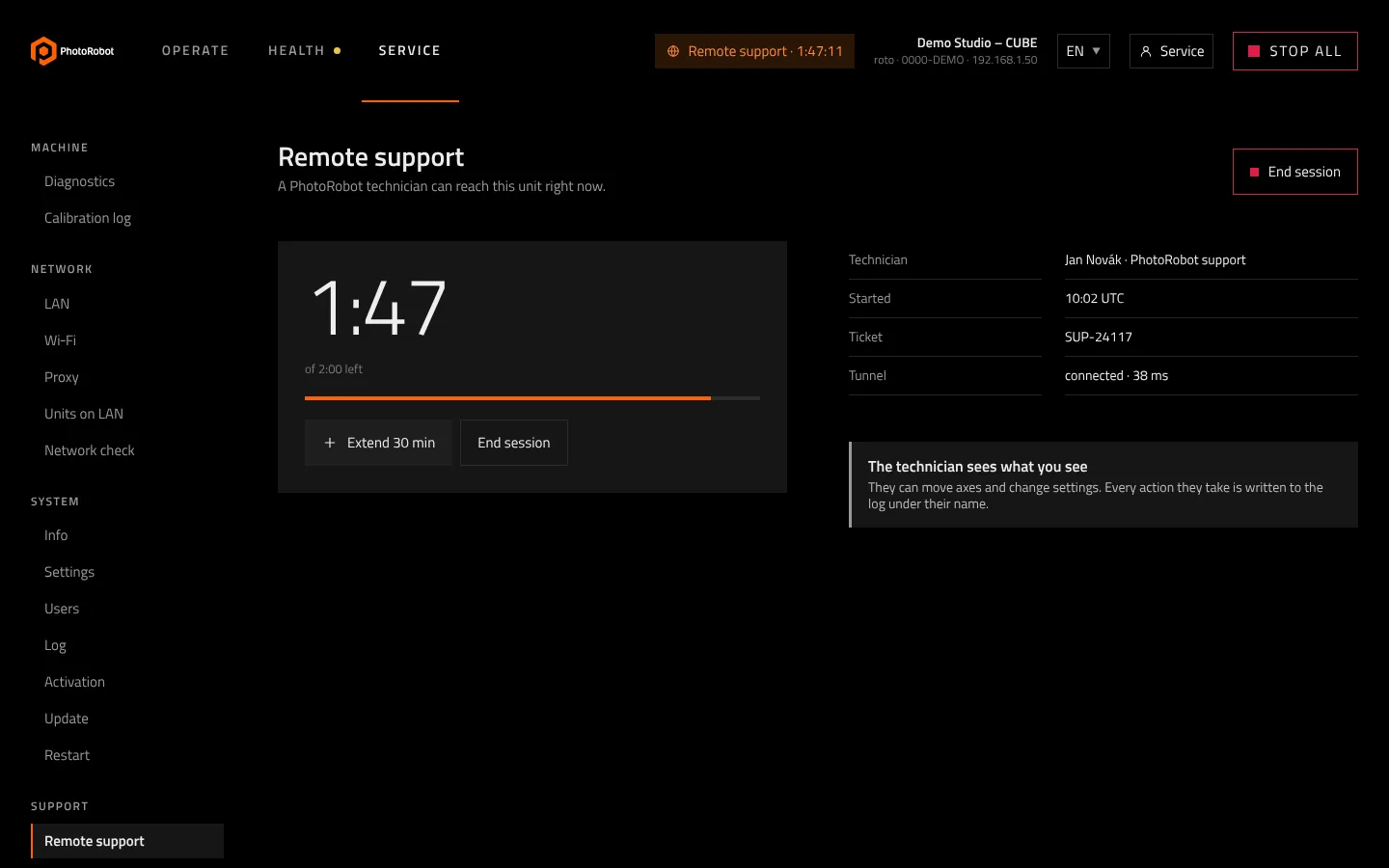
9 Upgrading to firmware 2.0
9.1 With PhotoRobot PWS
Firmware 2.0 and all its minor releases (2.1, 2.2 and later) are included for customers with an active PhotoRobot PWS. Feature updates and new versions of the control-unit firmware are a PWS benefit, as described in the PWS terms.
9.2 Without PWS
You have two options:
- Upgrade to firmware 2.0 as a paid upgrade. You pay once for the major version 2. All minor releases of firmware 2 (2.1, 2.2, 2.3 and later) are included; you pay again only when a new major version (3.0) comes out. Ask us for an offer for your control unit.
- Stay on your current firmware. It keeps working; nothing is switched off.
Contact PhotoRobot for the upgrade. We also tell you whether your control unit can run firmware 2.0.
9.3 Why we strongly recommend the upgrade
The previous firmware is built on an older Linux foundation that no longer receives security updates. New security gaps are found in such systems over time, and they will not be fixed in the previous firmware. Firmware 2.0 runs on a current, maintained foundation and receives security fixes with its releases.
For the security of your network, PhotoRobot strongly recommends upgrading. If you decide to stay on the previous firmware, add a security layer at the level of your network: for example, keep the control unit in a separate network segment that only the studio computers can reach, and do not expose it to the internet.
10 Troubleshooting
| Symptom | Likely cause | What to do |
|---|---|---|
| The page does not open | the computer is in another network than the unit, or the address is wrong | Check that both are in the same network. Find the unit in PhotoRobot Controls or ask your IT team for its address. |
| The browser warns about the connection | the unit uses HTTPS, but your network cannot reach the unit's name | Ask your IT team or PhotoRobot support (chapter 2.4). |
| The table does not move from the web | the motors are off | Choose Turn motors on in Operate (chapter 3.1). |
| The move buttons are greyed out | a stop is active, a fault is reported, or another move is running | Release the hardware stop of the machine if it is pressed, then look at Health and the Status panel. |
| A manual move stopped on its own | the page lost the connection to the unit | This is intended. Reload the page and move again. Programs are not affected. |
| Health shows an amber item | an early warning | Read the item and follow what it says. The machine keeps working. |
| Clean the air filter | the temperature trend points to a clogging filter | Clean the filter as described in your machine manual, then choose Mark filter cleaned (chapter 5.4). |
| Motors held off because of temperature | the unit protects itself until it cools down | Check that the vents are free and the filter is clean. The motors come back once the unit has cooled down. |
| Can't check for updates | the unit cannot reach PhotoRobot right now | Nothing to do; the machine works normally and the unit tries again later. Run Network check if it persists. |
| Your plan covers firmware up to X | newer releases are not included in this unit's plan | The installed firmware keeps working. Contact PhotoRobot about PWS (chapter 9). |
| The Service page shows a lock | the service area needs a code | Operation is not affected. Contact PhotoRobot support if you need a service page (chapter 1.2). |
| Nothing works and you need help | Download the log in Service › Log (a technician can unlock it for you), copy the Network check result and open a ticket with PhotoRobot support. |